
Support
Install and Troubleshooting
Everything you need to install Ctrl2Cmd cleanly, grant the right macOS permissions, and fix the common issues people hit after download.
Install Ctrl2Cmd
1. Download Ctrl2Cmd
Download the latest version from the latest release page.
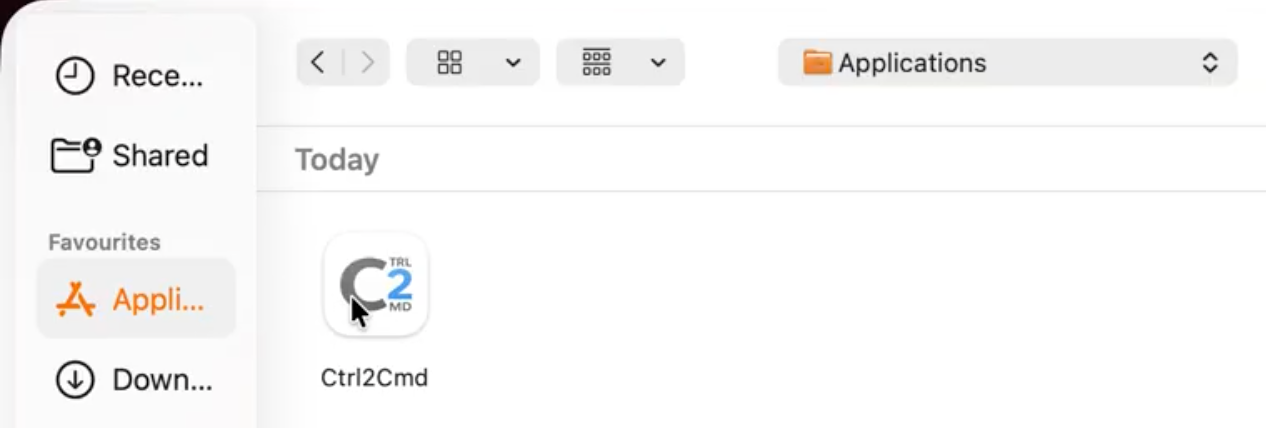
2. Install by dragging Ctrl2Cmd into Applications
Open the downloaded disk image and drag Ctrl2Cmd into your Applications folder.
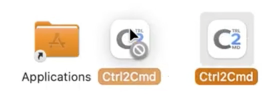
Note: Drag to Applications, then open the Applications folder and launch Ctrl2Cmd from there - this ensures everything works as expected.
On first launch, macOS may show a standard security prompt. This is normal. Ctrl2Cmd is notarized by Apple, meaning it has passed Apple's security checks. You can read more about this process here.
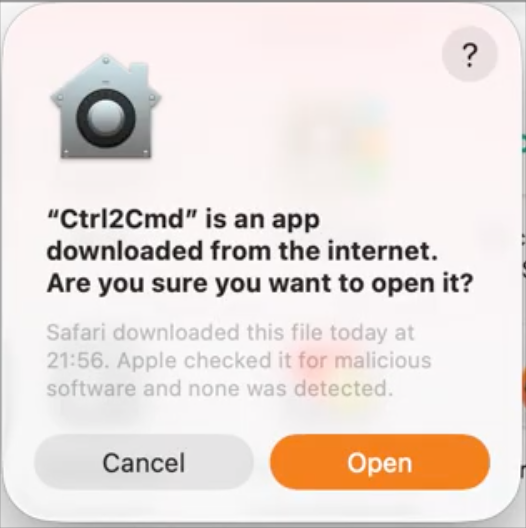
3. Enable Accessibility access
Ctrl2Cmd requires Accessibility permission to remap keyboard shortcuts. This is standard for apps that customise shortcuts on macOS.
- Open
System Settings > Privacy & Security > Accessibility - Enable Ctrl2Cmd in the list
- Relaunch Ctrl2Cmd if macOS asks you to
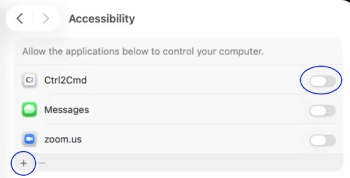
Click the + if Ctrl2Cmd does not appear.
Tip: If you are reinstalling Ctrl2Cmd, you may need to remove it from this list and add it again.
4. Optional: Run on startup
If you want Ctrl2Cmd available every time you log in, add it to your login items.
Tip: You can also access these settings in Ctrl2Cmd. Open Settings, scroll to the bottom, and click Login Settings.
- Open
System Settings > General > Login Items - Add
Ctrl2Cmd
Click + to find Ctrl2Cmd
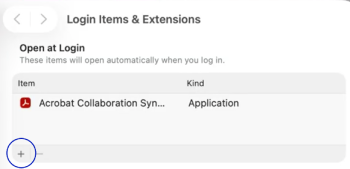
Select Ctrl2Cmd
5. Activate your license
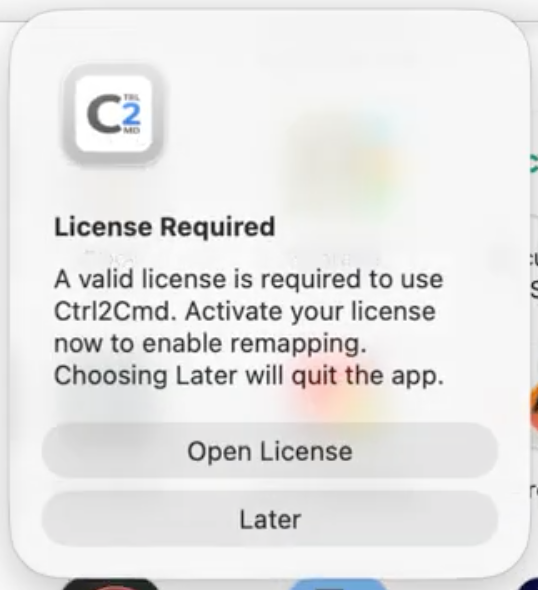
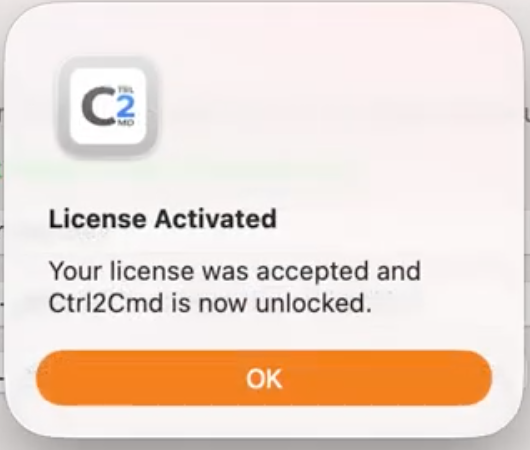
When Ctrl2Cmd opens, activate your license before using the app.
- Enter the email address you bought Ctrl2Cmd with
- Enter your license key
- Your license key will have been emailed to you after purchase
- Click
Activate License
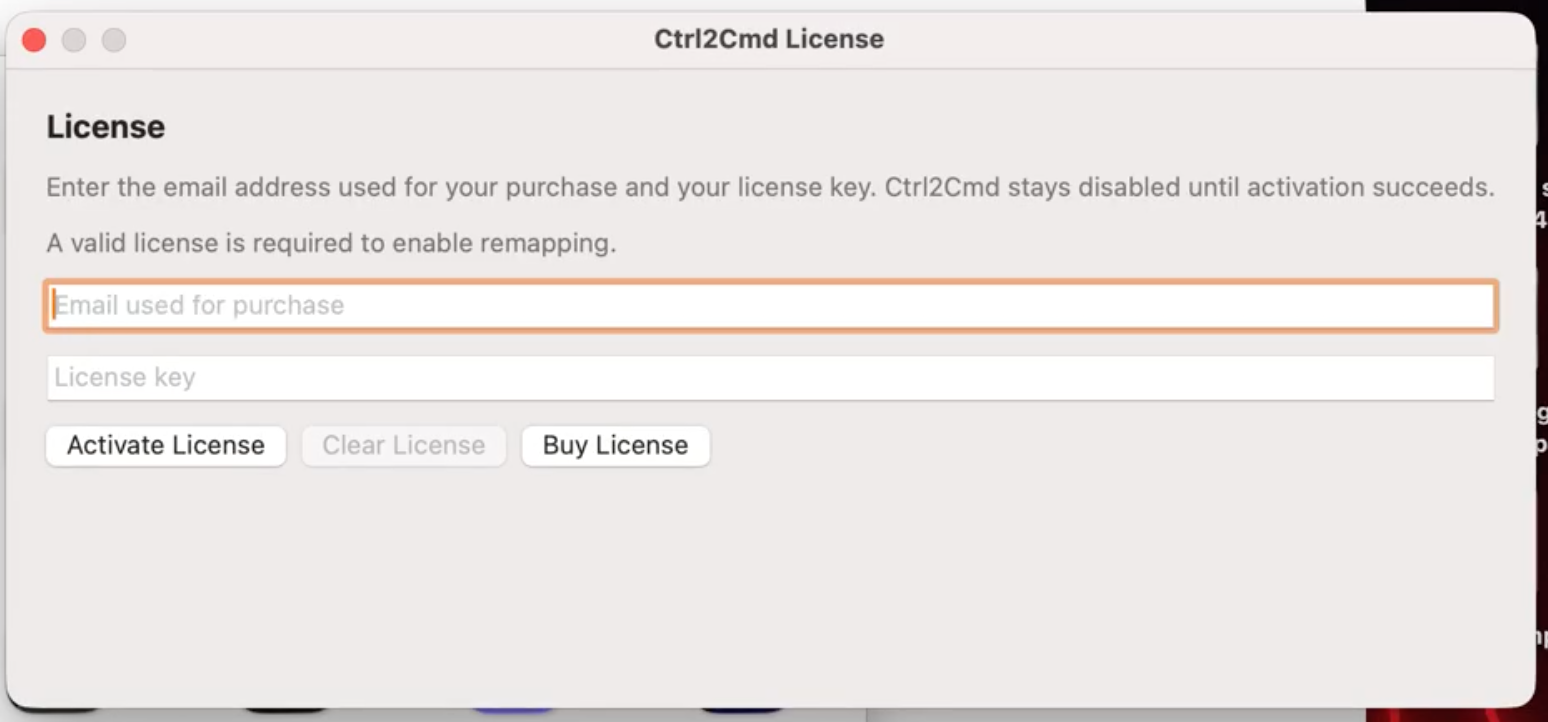
Important: Use the same email address that you used when buying Ctrl2Cmd. If you cannot find your key, check the email receipt you received after purchase.
Troubleshooting
Update blocked by macOS
If Ctrl2Cmd shows a message like was prevented from modifying apps on your Mac, macOS blocked the in-place update step.
- Make sure you are running
Ctrl2Cmdfrom/Applications, not from Downloads or the mounted DMG - Open
System Settings > Privacy & Security > App Management - Allow Ctrl2Cmd if macOS shows it there
- Quit Ctrl2Cmd and launch it again from
/Applications - Try
Check for Updates...again
If updating still fails
Use the manual download instead. Download the latest version, replace the copy in Applications, and launch it again.
Why this happens
Ctrl2Cmd uses Sparkle for updates. Sparkle replaces the installed app on disk, and newer versions of macOS may require permission before an app can modify another app bundle in Applications.